
Scientific figure checker: test your figures against journal requirements
A scientific figure checker compares your image file with a journal's artwork rules. Pick your journal and column width, drop in a figure, and see its effective DPI at print size, whether the format and color mode will pass, and which colors collapse for colorblind readers — with the fix for each.
Check a figureThe DPI in your file properties is not what journals check
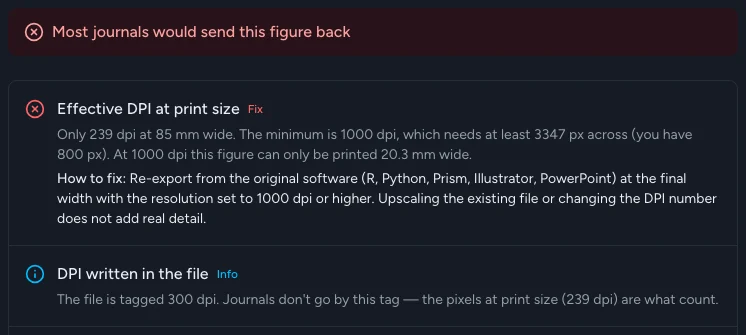
A figure tagged 300 dpi that is 800 pixels wide prints at only 239 dpi in an 85 mm column. That number is the figure's effective DPI: pixel width divided by printed width in inches. Journals measure pixels at the printed size, which is why this checker asks for your column width first.
How to check a scientific figure before journal submission
Three steps, all in your browser — the file is never uploaded.
Choose your journal and printed width
Select Nature, Science, Cell, PNAS, Elsevier, Springer, Wiley, ACS, PLOS ONE or IEEE, or leave it on the common requirements. Then choose single column, full width or a custom width in millimetres.
Drop in the figure
TIFF, PNG, JPEG, PDF, EPS and SVG all work. The checker reads pixel dimensions, color mode and compression straight from the file and guesses whether it is a photo, a mixed figure or a chart.
Fix what is flagged
Every item is marked Pass, Check or Fix, with the exact pixel count you need and how to get there. Switch to First submission to see what can wait until after acceptance.
What a check looks like
What the figure checker looks at
The technical checks journals run on figures
These are the problems production teams send figures back for. Each check uses your journal's published numbers where they exist.
Effective DPI at print size
Pixel width divided by printed width — not the DPI tag in the file. You get the minimum pixel count your journal needs and the widest the figure can print.
Photo, mixed or line art thresholds
Photos need about 300 dpi, mixed figures 500–600 and line art 1,000–1,200. The checker detects the figure type and applies the right bar.
Format, compression and transparency
Flags lossy JPEG on charts, low JPEG quality, JPEG-compressed TIFFs, transparent backgrounds and formats journals refuse, such as WebP and GIF.
RGB or CMYK
Reads the color mode stored in the file. Most journals now want RGB and convert for print themselves.
Colorblind and grayscale safety
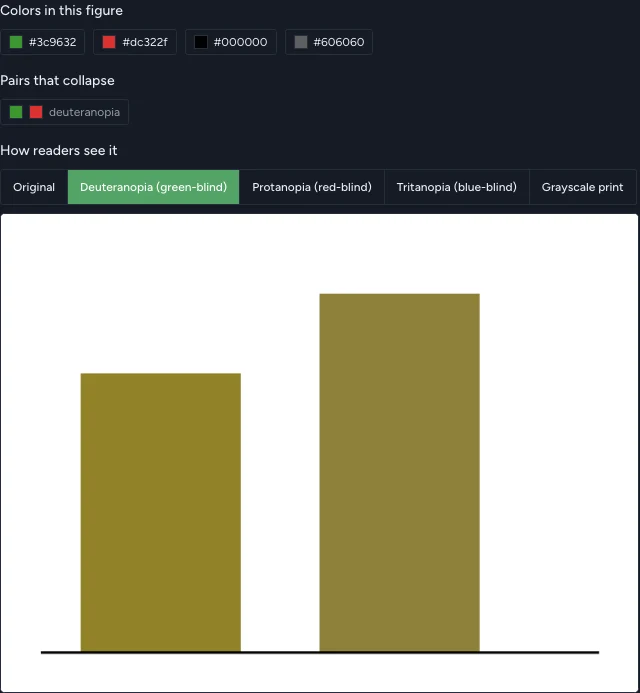
Simulates deuteranopia, protanopia and tritanopia, names the exact color pairs that collapse, and checks the figure in grayscale.
Page height and file size
Checks the figure fits your journal's maximum height at the chosen width and stays under its per-figure size limit.
Figure requirements by journal
The numbers the checker uses, taken from each publisher's official artwork guidelines (checked October 2026). A dash means the publisher does not state it; the checker then uses the common requirement.
| Journal | Single / full width (mm) | Min. dpi: photo / mixed / line art | Max height (mm) | Max file (MB) |
|---|---|---|---|---|
| Nature / Nature Portfolio | 89 / 183 | 300 / — / — | 170 | 50 |
| Science | 57 / 184 | 300 / — / 300 | — | — |
| Cell Press | 85 / 174 | 300 / — / 1000 | 200 | 20 |
| PNAS | 87 / 178 | 300 / 600 / 1000 | 225 | — |
| Elsevier | 90 / 190 | 300 / 500 / 1000 | — | 10 |
| Springer | 84 / 174 | 300 / 600 / 1200 | 234 | — |
| Wiley | 80 / 180 | 300 / 600 / 600 | — | 10 |
| ACS (JACS, ACS Nano …) | 84.7 / 177.8 | 300 / — / 1200 | 232.8 | — |
| PLOS ONE | 132* / 190.5 | 300 / 300 / 300 | 222.3 | 10 |
| IEEE | 88.9 / 182 | 300 / — / 600 | 220 | — |
| Not sure / other journal | 85 / 180 | 300 / 600 / 1000 | — | — |
* PLOS ONE has no fixed column sizes (any width from 66.8 to 190.5 mm); 132 mm is the width that lines up with the text column of its PDF.
NEJM, The Lancet, JAMA and The BMJ redraw accepted figures in house and publish only basic resolution rules. Taylor & Francis, Oxford Academic and MDPI leave sizes to each journal — use your journal's instructions and the common requirements.
How many pixels does your figure need?
Journals measure resolution at the printed size, so the pixel count you need depends on how wide the figure will print. Pixels across = width in mm ÷ 25.4 × dpi.
| Printed width | 300 dpi | 600 dpi | 1000 dpi | 1200 dpi |
|---|---|---|---|---|
| Single column (85 mm) | 1,004 px | 2,008 px | 3,347 px | 4,016 px |
| 1.5 columns (120 mm) | 1,418 px | 2,835 px | 4,725 px | 5,670 px |
| Full width (180 mm) | 2,126 px | 4,252 px | 7,087 px | 8,504 px |
300 dpi is the usual minimum for photos, 500–600 for figures mixing images and text, 1,000–1,200 for line art such as charts. Height scales the same way.
How to export a high-resolution figure from your software
The reliable fix for a low-resolution figure is to export it again at the final size — not to upscale the old file. Vector PDF or EPS avoids the problem entirely for charts.
R (ggplot2)
Set the size in millimetres and the dpi in the same call. TIFF with LZW compression stays small; use a PDF for a vector version.
ggsave("figure1.tiff", width = 85, height = 60, units = "mm",
       dpi = 600, compression = "lzw")
ggsave("figure1.pdf", width = 85, height = 60, units = "mm")
Python (matplotlib)
Create the figure at its printed size in inches, then save with the dpi you need. Fonts set in points then come out at the size you chose.
fig, ax = plt.subplots(figsize=(85 / 25.4, 60 / 25.4))
fig.savefig("figure1.tiff", dpi=600,
            pil_kwargs={"compression": "tiff_lzw"})
fig.savefig("figure1.pdf")  # vector
MATLAB
exportgraphics (R2020a and later) writes the figure at a set resolution, or as a vector PDF.
exportgraphics(gcf, "figure1.tif", "Resolution", 600)
exportgraphics(gcf, "figure1.pdf", "ContentType", "vector")
GraphPad Prism
File › Export, choose TIFF, set the resolution to 600 dpi (1,200 for graphs with only lines and text) and the color model to RGB. Choose PDF or EPS instead to keep the graph as vectors.
PowerPoint
File › Save As › PDF keeps shapes, charts and text as vectors, and most journals accept PDF. If you need an image, first set the slide to the figure's final size (Design › Slide Size › Custom). On a Mac, File › Export lets you type the pixel width from the table above; on Windows, image export uses screen resolution by default, so the PDF route is safer.
Excel
Select the chart, then File › Save As › PDF to export just that chart as vectors. Or paste it into PowerPoint as a chart (not as a picture) and use the PowerPoint route.
ImageJ / Fiji
Keep the original pixels: Image › Scale only interpolates and adds no detail. Convert composites or 16-bit images with Image › Type › RGB Color, add the scale bar, then File › Save As › Tiff.
Illustrator / Inkscape
Save as PDF or EPS with fonts embedded or converted to outlines. If a raster file is required, Illustrator's File › Export › Export As › TIFF and Inkscape's Export dialog both let you set the dpi directly.
Will your labels still be readable after the journal shrinks the figure?
Journals scale your figure to the column width, and the text shrinks with it. A figure drawn 180 mm wide with 10 pt labels, printed in an 85 mm column, ends up with 4.7 pt text — below Nature's 5 pt minimum.
- Draw the figure at its final printed size, so the font size you set is the size readers see.
- Aim for 6–8 pt for labels and 8 pt or more for panel letters; journals ask for roughly 5–12 pt depending on the publisher.
- Keep lines at 0.5 pt or thicker at the final size — hairlines can disappear in print.
- Use one sans-serif font (Arial or Helvetica) across all figures, and keep the same size for the same kind of label.
- Label panels with the same letter style (a, b, c or A, B, C) in the same corner, and describe each panel in that order in the figure legend.
Colorblind-safe colors for scientific figures
About 1 in 12 men has some form of color vision deficiency, most often red–green. The Okabe–Ito palette below stays distinguishable for the common types and is widely recommended for scientific figures. For continuous data, use viridis or cividis instead of rainbow or red–green scales.
Color should never be the only cue: add line styles, marker shapes or direct labels so the figure also works in grayscale.
Sharp on screen, blurry in the PDF?
Word compressed it
Word downsamples images when you save, so figures pasted into the manuscript lose detail in the PDF. In File › Options › Advanced › Image Size and Quality, tick "Do not compress images in file" and set the default resolution to High fidelity — and upload each figure as its own file as well.
It was a screenshot
Screenshots and images copied from a viewer carry screen resolution, usually 72–144 dpi at print size. Export from the original software instead.
Upscale or re-export?
Re-export whenever you still have the data or the source file — it is the only way to get real detail. Upscaling (including AI upscalers) is a last resort for a photo you cannot recapture, and it should not be used on micrographs or blots, where invented detail counts as altering data.
Image editing journals allow — and what they don't
Production checks look at file specs; image-integrity screening looks at what was done to the image. The rules below are common to most journals' image policies.
Generally allowed
- Adjusting brightness, contrast or color balance evenly across the whole image, and applying the same adjustment to the controls
- Cropping, as long as it doesn't remove information needed to interpret the result
- Combining images from different fields or gels, with clear dividing lines and a note in the legend
Not allowed
- Enhancing, hiding, moving or removing a specific feature within an image
- Splicing lanes or panels together without marking the join
- Reusing the same image for different conditions
Keep the unprocessed originals and describe any adjustments in the methods. This checker does not screen for manipulation or duplication.
Got a technical check report about your figures?
Editorial offices often return manuscripts before review with short notes about figure files. Here is what the usual phrases mean and where to check them on this page.
- “Figures are of insufficient resolution / quality”
- Too few pixels at the printed size. See Effective DPI at print size and the pixel table.
- “Please supply figures in RGB”
- The file is CMYK. See Color mode.
- “The figure file is too large”
- Over the per-file upload limit. See File size.
- “Please provide editable / vector figures”
- Charts were sent as images. Export them as PDF or EPS.
- “Text in the figures is too small”
- Labels shrink when the figure is scaled to the column. See the font size section.
- “Figure exceeds the page dimensions”
- Too tall for the page at that width. See Fits the page height.
Figure checker FAQ
Common questions
Check your next figure
Free, private and instant. Pick your journal, drop in the file, and fix only what actually needs fixing.